A contract comes back from the other side with "a few small edits". A supplier sends a new price list. Your team publishes revision 7 of a report. In each case the question is the same: what exactly changed? Reading both versions side by side and hoping you spot every difference is slow, and the edits that matter most, a number, a date, a deleted sentence, are the easiest to miss.
Compare two PDFs in your browser
- Open pdfmerger.io/compare-pdf.
- Choose the original PDF on the left and the new version on the right.
- Click "Compare PDFs".
- Both documents open side by side. Scroll either one and the other follows.
- Use the up and down arrows (or the N and P keys) to jump from one difference to the next, or click one in the list of all differences.
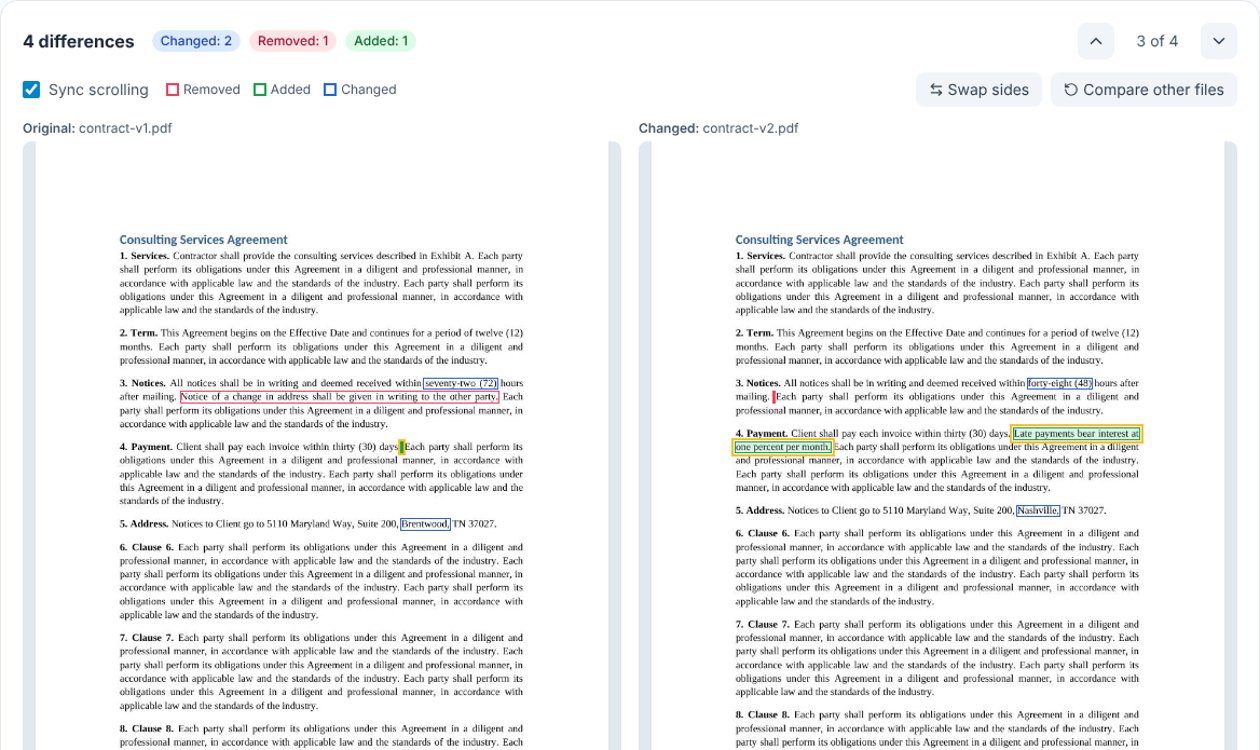
Removed words are boxed in red on the left, added words in green on the right, and replaced words in blue on both sides. Where text was taken out or put in, a small marker on the other side shows the exact spot.
Private by design
Both PDFs are read and compared on your own device. Nothing is uploaded, which matters when the files are contracts, offers, HR documents or anything else you would not want on a stranger's server.
Why word by word beats pixel by pixel
Some compare tools lay one page image over the other and color the pixels that differ. That works for drawings, but for documents it falls apart quickly: add one word to the first paragraph and every line below it shifts, so the whole page lights up. Comparing the text word by word avoids that. A sentence that moved to the next line or page because of an earlier edit is not reported as a change, and only the words that really changed are boxed.
What it finds, and what it does not
- Finds: added, removed and replaced words, numbers and punctuation, anywhere in the document, even when paragraphs reflow onto other pages.
- Does not find: changes to fonts, colors, images or layout alone. If only the formatting changed, the words are the same and there is nothing to report.
- Scanned PDFs: a scan is a picture of text, not text. Run both scans through the OCR tool first, then compare the results.
Tips for reviewing a contract redline
- Put the version you sent on the left and the version you got back on the right, so red means "they took this out" and green means "they added this".
- Walk through every difference with the next button rather than scrolling. The counter ("3 of 12") tells you when you have seen them all.
- Pay extra attention to the small ones: a changed number of days, a currency, a name or an address is one word but can change the deal.
- If the other side sent a Word file, convert it to PDF first with Word to PDF, then compare.
Frequently asked questions
Is it free?
Yes. There is no sign up, no watermark and no limit on how many documents you compare.
Does it work on a phone?
Yes. It runs in any current browser on iPhone, Android, Windows, Mac, Linux and Chromebook. On a small screen the two pages are narrow, so the list of differences under them is the easiest way to read the changes.
Can it compare PDFs with a password?
Remove the password with Unlock PDF first, then compare the unlocked copies.